
Digital Printers | DTG, DTF, Dye Sublimation, Digital Add-ons for Oval Screen Printing Presses, Direct Fabric, UV | Print Supplies
- Shop Inks and Supplies
- Promotions
JULY PROMOTION – Textalk Printer Package

- DTG Inks and Pretreatments
- Hybrid Digital Inks
- DTF Supplies
- Cleaning Solutions
- Printheads
- Consumable Parts and Supply
- RIP Software
- Spare Parts
- Accessories
- Promotions
- DTG
- DTF
- Dye Sublimation
- Hybrid
- Fabric
- UV
- Equipment













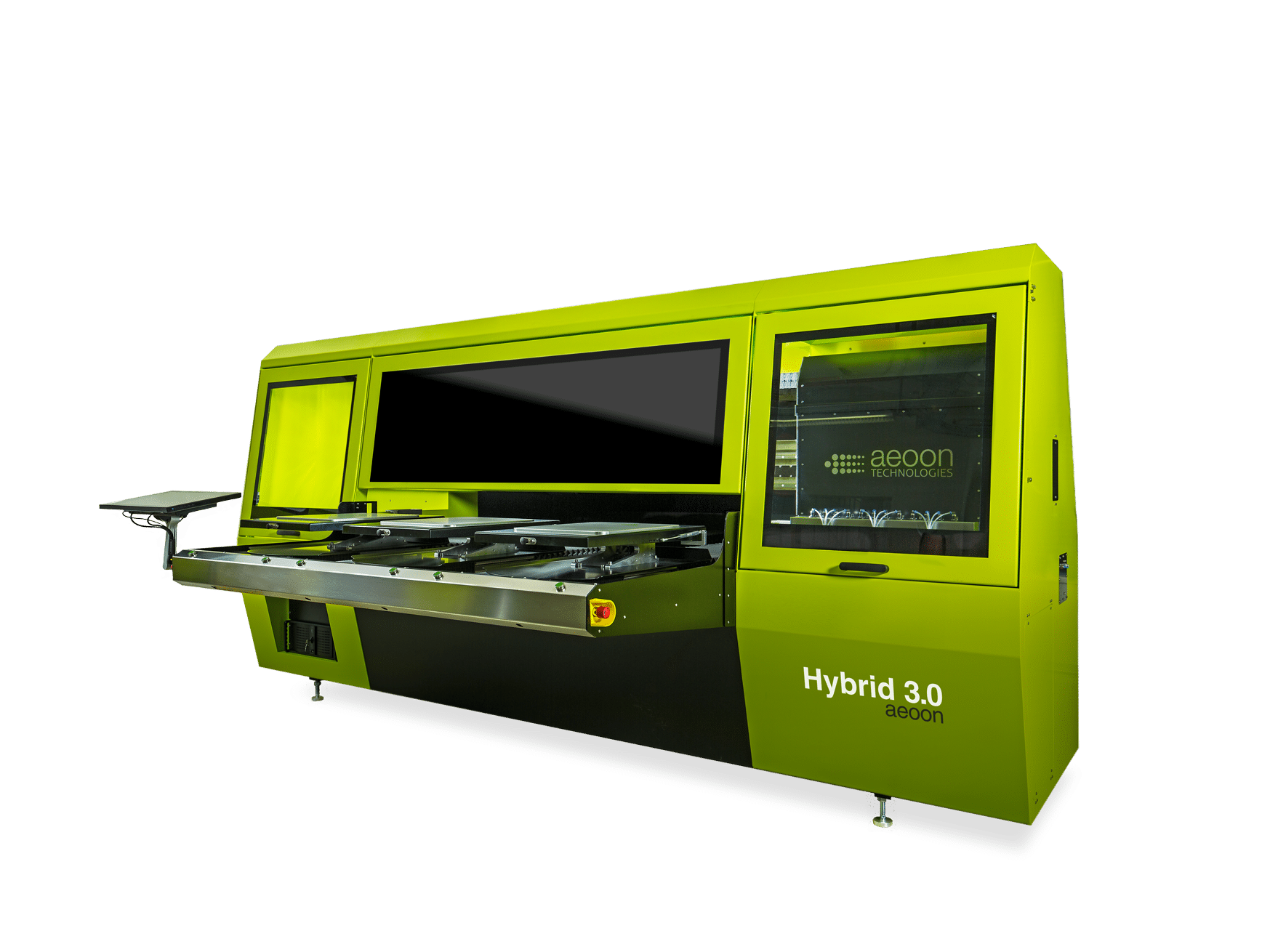






If you’ve encountered broken lines, distorted details, or missing sections in your DTG prints, you’re not alone. These frustrating flaws can affect the perceived quality of your finished product and even lead to costly reprints or customer complaints. The challenge is knowing exactly where the issue originates — is it a problem with your artwork file, the RIP software, or the printer hardware?
In this comprehensive guide, we’ll help you diagnose and solve one of the most common DTG print errors using a structured approach to RIP troubleshooting and file inspection. We’ll also explain how to optimize your RIP software settings for the cleanest, most consistent prints possible.
Step 1: Check the Artwork File
Before diving into your RIP settings or hardware, start with the source: the artwork file itself.
Common File-Related Causes of Broken Lines | Solutions |
|---|---|
through RIP software. | or high-res PDF). |
If your artwork looks perfect but still prints with broken lines, the issue likely lies deeper — in the RIP stage.
Step 2: Dive Into RIP Software Settings
RIP software (Raster Image Processor) plays a critical role in converting digital artwork into printer-ready data. If it doesn’t handle the artwork correctly, you’ll see all kinds of DTG print errors — including banding, pixelated edges, or missing details.
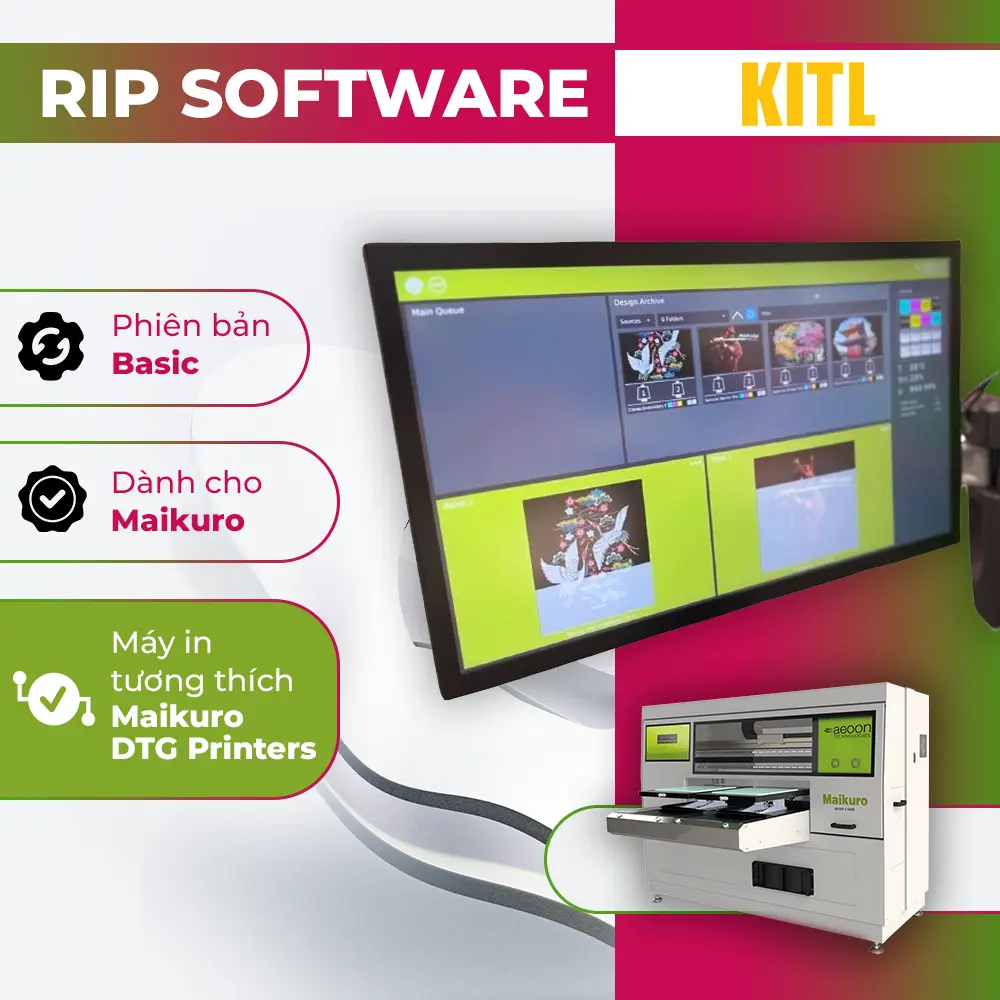
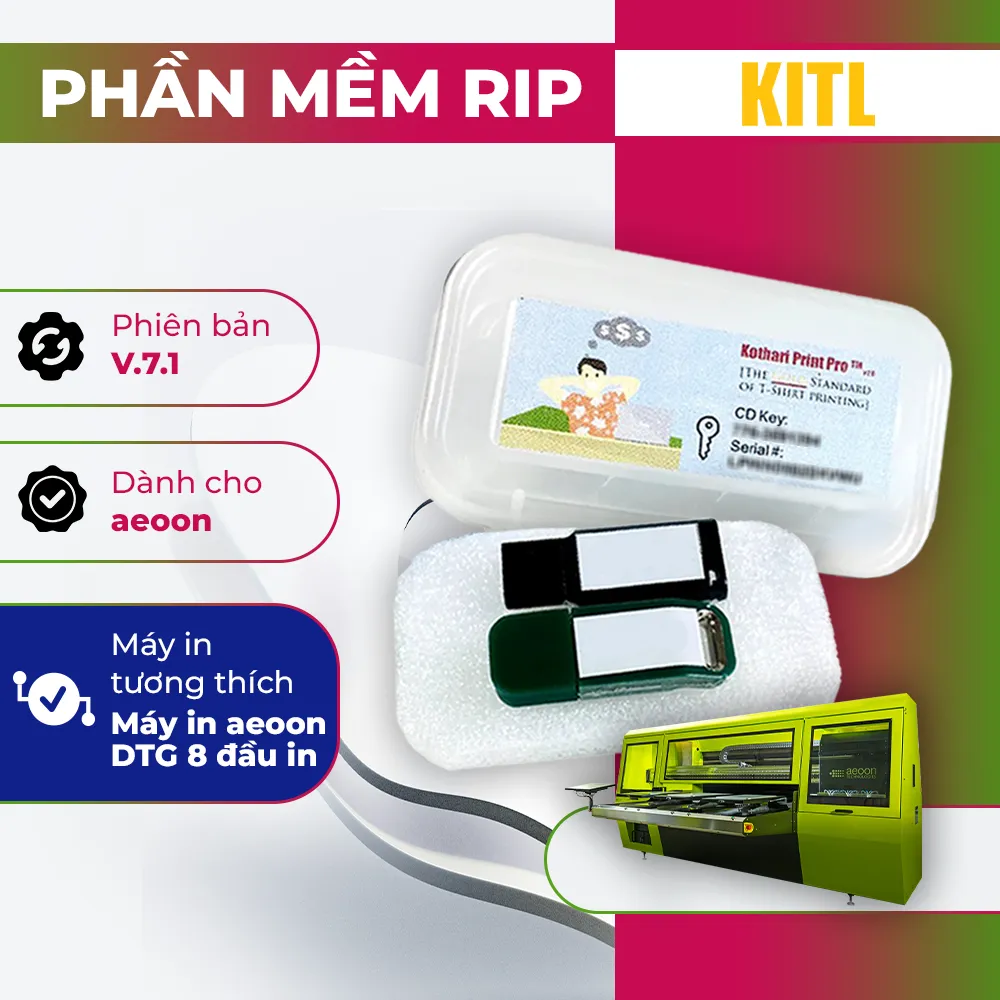


How RIP Software Can Cause Broken Lines
RIP software plays a critical role in print quality, and improper settings can lead to broken lines in your artwork. Incorrect resolution settings, for instance, can cause the image to be downscaled, resulting in loss of detail. Poor anti-aliasing or dithering options may lead to rough or jagged edges, making lines appear broken. Additionally, faulty white underbase generation can create gaps or uneven outlines, while a corrupt print queue or driver conflicts can result in data loss during spooling, causing parts of the artwork to go missing.
RIP Troubleshooting Checklist
- Check output resolution: Set your RIP to match your artwork’s DPI (usually 300 DPI).
- Inspect color management settings: Use correct profiles for garment type and ink.
- Adjust anti-aliasing and halftone settings: These can improve line clarity.
- Preview the job before printing: Most RIP software offers a raster preview. Zoom in and inspect edges and detail lines.
- Regenerate white underbase: If you’re seeing broken edges around white areas, reprocess the underbase.
- Clear and reset print queue: Restart the RIP to eliminate any temporary corruption.
Step 3: Examine the Printer Hardware
Even perfect files and RIP settings can be sabotaged by printer-related issues.
Printer-Related Causes of Broken Lines
Even with flawless files and optimized RIP settings, printer hardware issues can still cause broken lines in prints. Common hardware-related causes include clogged nozzles or misfiring print heads, which create gaps or streaks that resemble broken lines. Mechanical misalignment, often resulting from printer transport or head strikes, can also distort output. Additionally, outdated or mismatched firmware and printer drivers may misinterpret data from the RIP software, leading to printing errors.
Hardware Checks
To identify and resolve these issues, start by printing a nozzle check – most DTG printers include this diagnostic feature to detect missing segments. If needed, run an automatic or manual print head cleaning cycle. Recalibrating the print head alignment is crucial, especially after physical movement or impact. Lastly, keep your firmware and printer drivers up to date to ensure compatibility with your RIP software.
Step 4: Optimize Workflow to Prevent Future Errors
To minimize future DTG print errors, it’s essential to establish a stable and standardized workflow. A reliable process starts with always proofing your artwork at 100% size before importing it into the RIP software to catch any scaling or resolution issues early. Using artwork templates that include predefined bleed, DPI, and color settings ensures consistency across all designs.
Operating from a single RIP station with calibrated and consistent profiles helps eliminate discrepancies caused by varying system setups. Maintaining a printer log—with records of head cleanings, calibrations, and maintenance dates – adds accountability and ensures timely upkeep. Lastly, regularly backing up and testing your RIP software configuration provides peace of mind and reduces the risk of data loss or misconfiguration during production.
When to Contact Support
If you’ve already verified your design file, RIP software settings, and printer hardware but are still experiencing broken lines, it’s time to contact technical support. Most RIP software vendors provide valuable assistance through live chat or ticket-based systems, and many also offer remote access troubleshooting to diagnose deeper issues. Additionally, support teams can help customize print profiles tailored to specific garment types or design requirements. Don’t delay — unresolved print defects can quickly lead to wasted materials, production delays, and increased costs.
Conclusion: Mastering the RIP Process for Better Prints
Broken lines in DTG prints can be frustrating, but with a systematic approach to RIP troubleshooting, you can isolate and solve the root of the problem. Whether the culprit is your artwork, RIP software, or printer hardware, there are clear steps to restore clean, accurate output.
And as your understanding of RIP software deepens, you’ll gain more control over the quality of your prints — minimizing waste and delivering consistently professional results.

Shipping Worldwide
We will ship your ink and supplies orders regardless of your location.

Installations beyond Vietnam
Our printers and custom-built equipment are deployed globally.

Secure Payment
We ensure smooth transactions for the payments of your orders.

Customer Support
We support you through WhatsApp (internationally) and Zalo (Vietnam).
- aleph LAFORTE 400 Fabric Printer
- aleph LAFORTE 600 Fabric Printer
- aleph LAFORTE H Series Fabric Printer
- Textalk TK18 Series Digital Textile Printer
- Epson SureColor SC-F6430/H Dye Sub Printer
- Epson SureColor SC-F9430/H Dye Sub Printer
- Epson SureColor SC-F9530/H Dye Sub Printer
- Epson SureColor SC-F11030/H Dye Sub Printer